
A WordPress SEO audit is a structured check of your site’s settings, pages, speed and content to find what stops Google from crawling, understanding or ranking it. WordPress is flexible, but that flexibility also means themes, plugins and default settings can quietly cause problems. Work through the steps below in order and note each issue as you find it, so you can fix the most important ones first.
This post is part of our guide to SEO for small businesses. If your store runs on Shopify, use the Shopify SEO checklist instead.
Before you start: set up your audit tools
- Google Search Console: shows indexing status, search queries, clicks and crawl problems.
- GA4: shows what visitors do after they arrive.
- A crawler: a tool such as Screaming Frog (free up to 500 URLs) lists titles, headings, status codes and redirects for every page.
- PageSpeed Insights: tests speed and Core Web Vitals.
- A backup: take a full backup before you change settings or plugins.
1. Check that search engines can see your site
- In WordPress, open Settings → Reading and make sure “Discourage search engines from indexing this site” is not ticked. This setting is often left on after a site is built on a staging copy.
- Open
yoursite.com/robots.txtand confirm it does not block important folders. - Submit your XML sitemap in Search Console. WordPress creates a basic one by default, and most SEO plugins create a more detailed one.
- In the Search Console Pages report, review pages marked “Crawled, currently not indexed”, “Blocked by robots.txt” or “Duplicate without user-selected canonical”.
For the full process, follow our technical SEO audit guide.
2. Review your permalinks and site structure
- Use the “Post name” permalink setting so URLs read like
/wordpress-seo-audit/, not?p=123. - Keep a clear hierarchy: homepage, main categories or service pages, then individual posts and pages.
- Make sure every important page is reachable from your menu, homepage or a related page within a few clicks.
- If you change a URL, set up a 301 redirect from the old one.
3. Audit titles, descriptions and headings
Run your crawler and export the title tags, meta descriptions and H1 headings. Look for these problems:
- Missing or duplicate titles and descriptions.
- Titles that are cut off in results or do not include the main phrase for the page.
- Pages with no H1, or more than one H1 where it makes the page confusing.
- Generic titles such as “Home” or “Untitled”.
Preview and rewrite snippets with the SERP Snippet Preview before you save them.
4. Check content quality and search intent
For each page that matters to your business, ask whether it answers what a searcher actually wants. Thin pages, near-duplicates, outdated advice and pages that target the same keyword as another page all hold a site back. Decide for each weak page whether to improve it, merge it into a stronger page or remove it.
5. Review categories, tags and archives
WordPress creates archive pages for categories, tags, authors and dates. On many sites these turn into hundreds of thin pages with little unique value. Keep categories that group content in a useful way, delete unused tags, and consider setting low-value archives to noindex in your SEO plugin. Also check that image attachment pages are not indexed as separate thin pages.
6. Audit your plugins and theme
- Deactivate and delete plugins you no longer use.
- Use only one SEO plugin, such as Yoast SEO, Rank Math or All in One SEO, so titles, sitemaps and schema do not conflict.
- Check that your theme is updated, lightweight and outputs clean headings.
- Look for page builders or add-ons that load large scripts on every page.
7. Test speed and mobile experience
- Test your homepage, a key service or product page and a blog post in PageSpeed Insights.
- Compress and correctly size images, and use modern formats where your setup supports them.
- Use a caching solution suited to your hosting, and check the result on a real phone.
- Review the Core Web Vitals report in Search Console for pages flagged as needing improvement.
8. Check security and HTTPS
Your whole site should load over HTTPS, with the HTTP version redirecting to it. Check for mixed content warnings, keep WordPress core, themes and plugins updated, and remove spam comments and spam pages. A hacked or insecure site can lose visibility quickly.
9. Review internal links and structured data
- Link from strong pages to the pages you most want to rank, using descriptive anchor text.
- Fix broken internal links and long redirect chains.
- Check that important pages are not orphaned (no internal links pointing to them).
- Test key pages in Google’s Rich Results Test and confirm any structured data matches visible page content.
10. If you run WooCommerce
For stores, also audit category pages, product titles and descriptions, variants, filters and out-of-stock handling. Our guides to category page optimization and product page SEO cover the details.
How to prioritize what you find
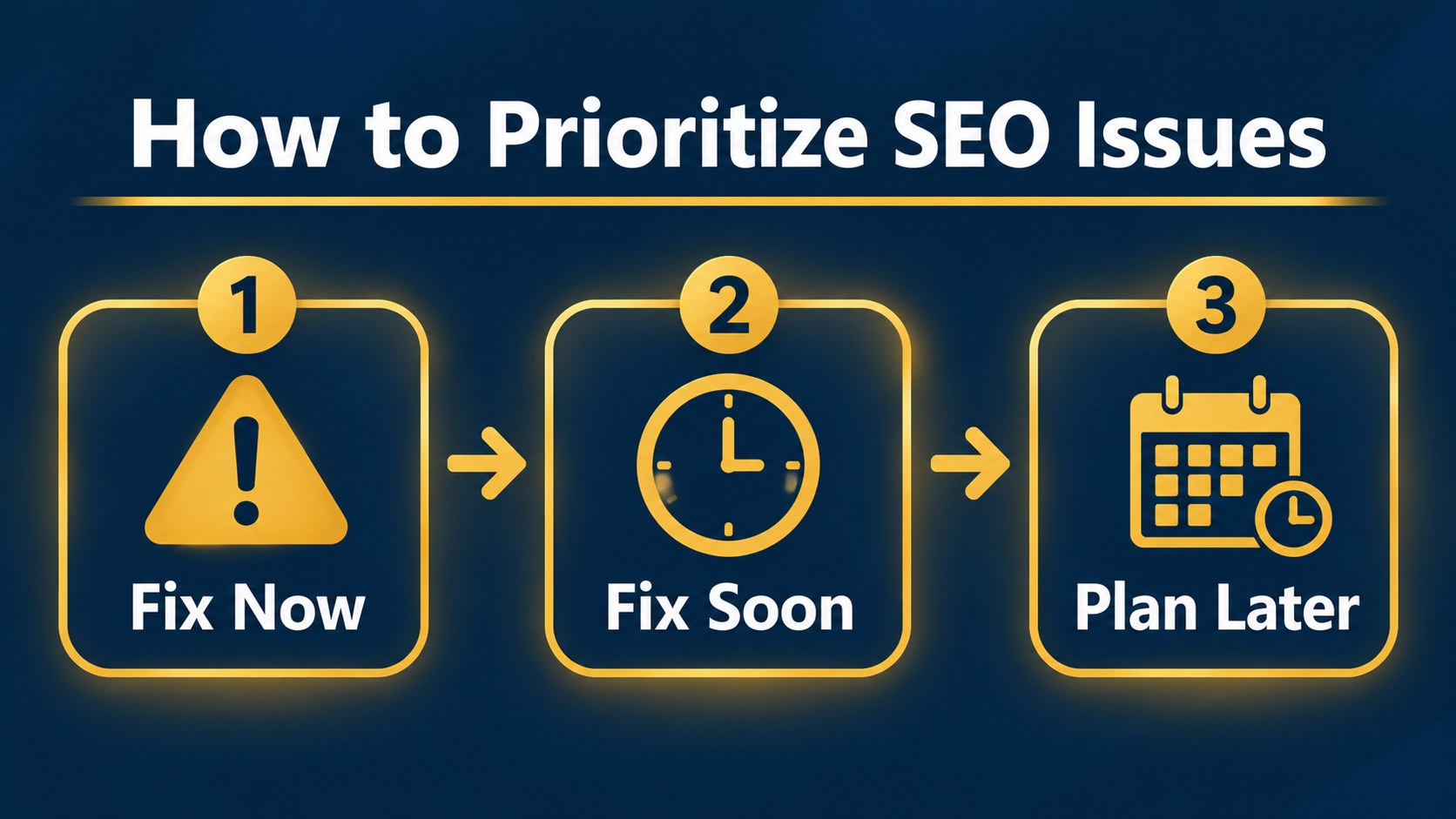
| Priority | Issue type | Examples |
|---|---|---|
| Fix now | Blocks crawling or indexing | Site set to discourage indexing, key pages noindexed, broken sitemap, HTTPS errors |
| Fix soon | Hurts important pages | Missing or duplicate titles, thin or duplicate content, slow key pages, broken internal links |
| Plan for later | Gradual improvements | Content updates, new supporting articles, stronger internal linking, extra schema |
Quick WordPress SEO audit checklist
- Search engines allowed to index the site, and sitemap submitted.
- Post name permalinks and sensible site structure.
- Unique titles, descriptions and headings on key pages.
- Weak, thin or duplicate content improved, merged or removed.
- Low-value archives and unused tags handled.
- Unused plugins removed and one SEO plugin in use.
- Speed and mobile experience tested.
- HTTPS working and software updated.
- Internal links and structured data checked.
- Impressions, clicks and conversions tracked after changes.
Need an expert review of your WordPress site?
If you would rather have someone audit the site for you, contact us with your URL. For online stores, you can also request an ecommerce SEO assessment. You will get a prioritized list of practical next steps, with no ranking guarantees.
Frequently asked questions
How often should I run a WordPress SEO audit?
A full audit once or twice a year works for most small sites. Run a quick check after a redesign, migration, major plugin change or sudden traffic drop.
Which WordPress SEO plugin is best?
Yoast SEO, Rank Math and All in One SEO all cover the essentials. The best choice is the one you will configure properly. Use only one at a time.
Can I do a WordPress SEO audit for free?
Yes. Search Console, GA4, PageSpeed Insights and the free version of a crawler cover most of what a small site needs.
How long after fixing issues will I see results?
Technical fixes can show an effect within days or weeks once Google recrawls the pages. Content improvements often take several months. Track impressions and clicks in Search Console to see early progress.